
Key point
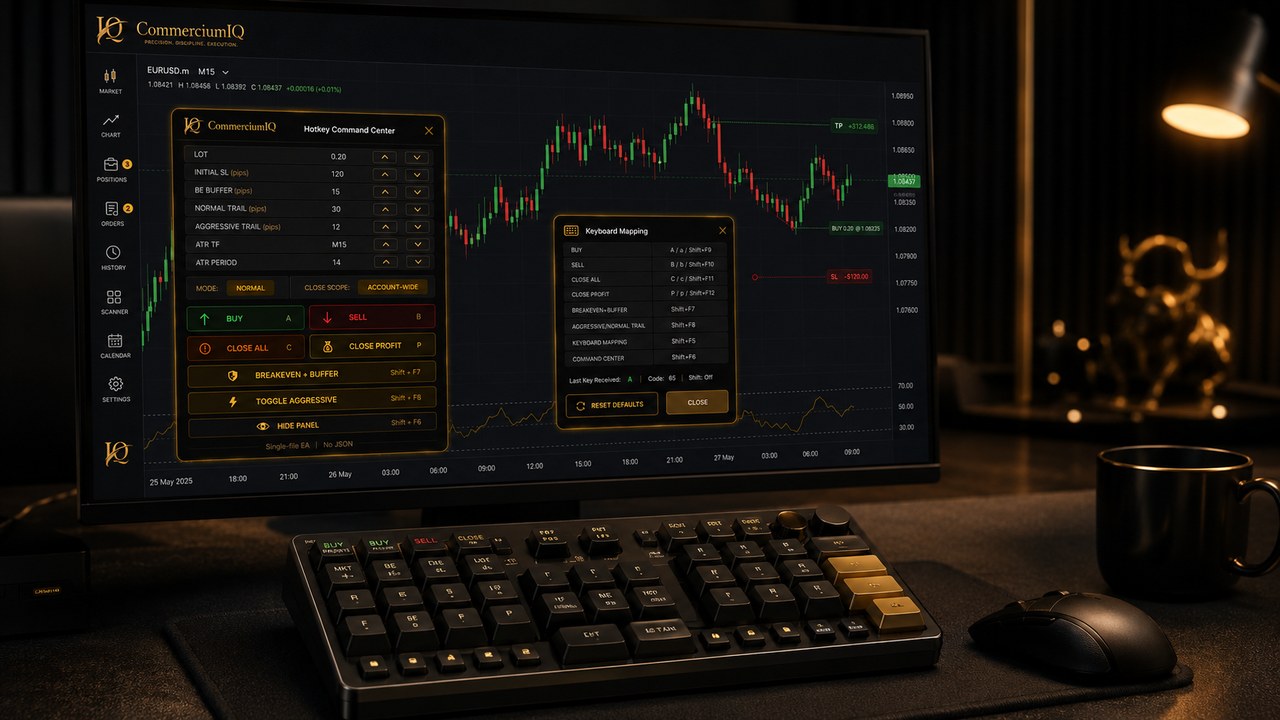
MT5 hotkey software and a physical trading keyboard are not the same thing. Software defines the command, scope, workflow rules, and platform interaction. A physical keyboard, macro pad, or Stream Deck-style device is only the input surface that can trigger a mapped action.
For CIQ Traders Keyboard, this distinction matters because the product is software-only workflow support. Hardware examples can help users imagine a setup, but they should not create confusion about what is included.
What hotkey software actually does
Hotkey software sits between the trader's intent and the MT5 workflow. It can organize commands, expose keyboard mappings, group actions into a cleaner panel, and reduce repeated clicks when a manual trader already knows what action they want.
The software should also make command boundaries easier to understand. A user should be able to tell whether a command is current-symbol scoped, account-wide, close-only, protection-only, or purely informational.
That clarity is more important than the idea of speed by itself.
What a physical trading keyboard does
A physical trading keyboard or macro pad gives the user a tactile way to trigger mapped actions. It can make a workflow feel more consistent because the same button location can be used repeatedly.
The physical device does not define the trading rule. It does not decide whether a close command is safe, whether a breakeven move is appropriate, or whether an entry is valid.
The device is useful only when the mapping behind it has already been tested.
The common misunderstanding
Many traders search for a trading keyboard because they want a more professional command surface. That search can mix together several different things: a physical device, hotkey software, MT5 scripts, expert advisors, trade panels, and custom shortcuts.
A useful comparison page should separate those items instead of using them interchangeably.
The buyer should understand whether they are purchasing software, hardware, instructions, templates, scripts, or a complete bundled system.
Why software-only can be a cleaner product
A software-only product avoids hardware compatibility claims that are hard to support. It can focus on MT5 desktop behavior, command naming, setup guidance, and workflow safety without promising that every physical device will behave the same way.
The user can choose their own keyboard, macro pad, or normal laptop shortcuts if the product supports the input method.
This keeps the product boundary easier to explain in support, refund, and compatibility pages.
Where physical controls are still useful
Physical controls can be useful when a trader wants consistent hand placement, fewer mouse movements, and clearer separation between command families. A macro pad can place entries, close commands, protection commands, and utility actions into a physical layout.
However, that value depends on labels, spacing, and discipline. A crowded physical layout can increase operational risk if high-impact commands are placed too close together.
A good physical setup should reinforce a tested software workflow, not replace the need for one.
Compare setup effort
Hotkey software requires installation, permission checks, platform focus checks, and command testing. A physical keyboard adds another setup layer: device profile, key mapping, labels, and possible vendor software.
The more layers involved, the more important the setup record becomes. The user should document product version, MT5 terminal, broker symbol, command names, physical keys, and expected results.
This record is what turns a personal setup into something that can be rebuilt or supported later.
Compare support risk
Support is easier when the product boundary is clear. If the issue is software command behavior, the support path can focus on MT5, the product version, and the command. If the issue is a physical key profile, the user may also need to check external device software.
Third-party keyboards, macro pads, and hardware profiles are not automatically included in product support.
Instead, the content should explain that hardware can be used as an input option where compatible, but hardware itself remains separate unless a product page explicitly includes it.
Compare user-error risk
A physical key can reduce repeated clicking, but it can also reduce the time available to catch a mistake. If the wrong key is pressed, the command may run faster than a mouse-based workflow.
Software can help by naming commands clearly and keeping dangerous actions separated in the interface, but the user still controls the setup.
Close-all, close-profit, partial close, breakeven, and trailing commands should be mapped more conservatively than low-impact utility actions.
How to choose between them
A trader who only wants a cleaner MT5 command workflow may start with software and normal keyboard shortcuts. A trader who wants tactile controls can later add a macro pad after the command behavior is understood.
The buying decision should start with the workflow problem: too many clicks, unclear command scope, inconsistent setup, or difficulty repeating the same manual process.
After that, the user can decide whether a physical device adds enough value to justify the extra setup layer.
Demo testing is the deciding step
The real comparison is not complete until both layers are tested in demo. The software command should be tested first. Then the physical key should be tested to confirm it triggers the same command and produces the same MT5 result.
The user should test active account, exact broker symbol, open position state, expected scope, and after-state.
A setup that cannot be verified in demo should not be trusted just because it looks professional on a desk.
Final buying rule
Hotkey software defines the command workflow. A physical trading keyboard provides an input surface. The safest setup is the one where both are clearly separated, documented, and tested.
CIQ Traders Keyboard is software-only MT5 workflow support, while hardware examples are optional setup ideas.
That clear boundary helps buyers understand what they are getting and prevents the product from relying on vague hardware promises.
A practical comparison checklist
A buyer can compare the two options with a simple checklist. First, identify whether the product being evaluated is software, hardware, or a bundle. Second, confirm whether MT5 desktop is supported. Third, check whether command scope is explained in plain language. Fourth, test one command through the software and then through the physical input device.
This checklist prevents a common mistake: judging the desk setup before understanding the actual command workflow. A professional-looking keyboard can still be mapped poorly, while a plain keyboard shortcut can be safer if the command is documented and tested.
The best choice is not the option with the most buttons. It is the option where the user can explain every high-impact command before pressing it.
When to add hardware later
A conservative path is to start with the software workflow, test the commands in demo, and add a physical device only after the command list is stable. This avoids spending time labeling a macro pad before the user knows which commands deserve fast access.
Hardware becomes more useful after the user has decided which actions are repeated often, which actions need separation, and which actions should remain slower on purpose.
That staged approach also keeps support easier because the user can tell whether a problem belongs to the software command or the physical device profile.