One-key test
Test each macro pad key one at a time in demo before using combinations or fast routines.
 CommerciumIQTraders Keyboard
Macro pad workflow
A macro pad can be useful when it sends predictable keyboard commands. CIQ Traders Keyboard provides the MT5-focused software workflow; the physical device is optional and not included.
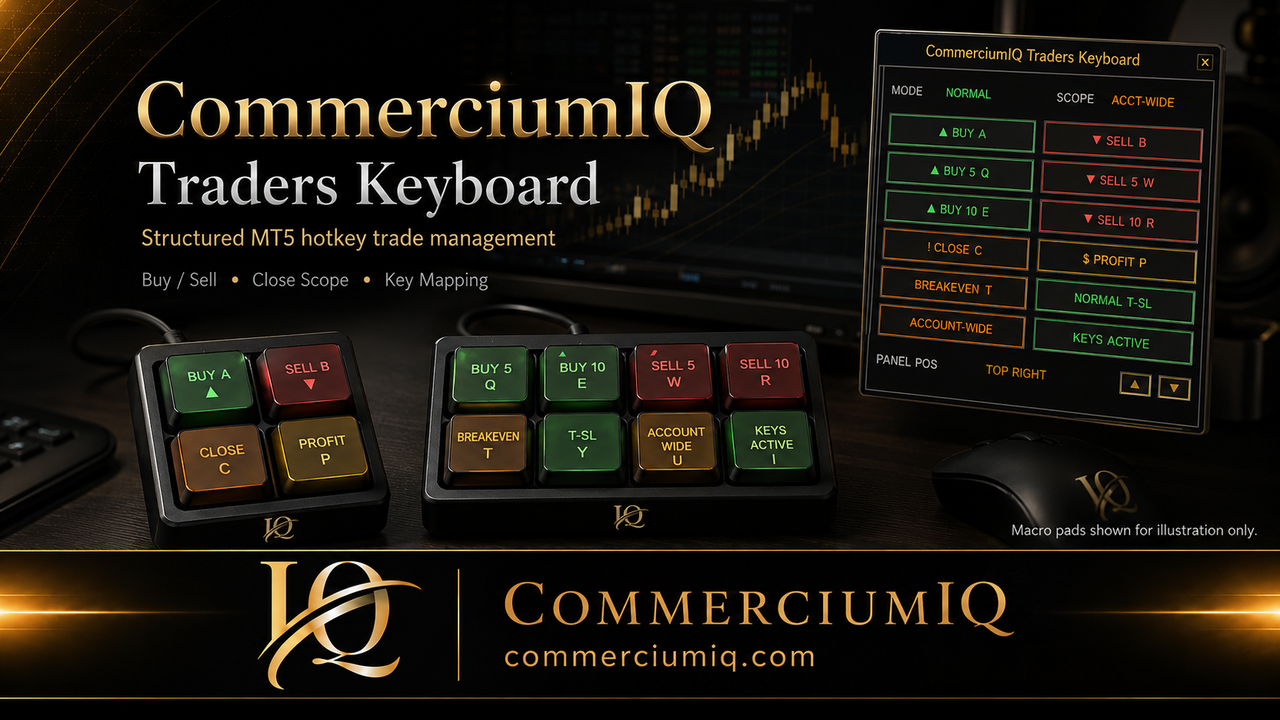
Layout ideas
A macro pad should simplify a tested workflow, not create a wall of commands the trader cannot explain.
| Macro pad size | Possible use | Best for |
|---|---|---|
| 4-key | Buy, Sell, Close, Profit Close | Minimalist workflow. |
| 5-key | Core actions plus Breakeven or T-SL mode | Simple workflow with one protection key. |
| 8-key | Core actions plus Buy 5 / Sell 5 / Breakeven / T-SL | More complete trade-control layout. |
| 10-key | Expanded multi-action setup | Users who want more direct buttons. |
| 12-key or 15-key | Full mapped workflow including panel/keys controls | Power users who still want a compact device. |
Hardware is not included. Confirm your device can send the exact key or shortcut combinations you plan to use.
A macro pad does not understand MT5, broker symbols, position scope, spread, or risk. It sends the keyboard input the user programmed. The software workflow and the trader’s confirmation routine determine whether the input is appropriate.
This is why the physical device should be configured after the software mapping is understood. The user should know what each software command means before assigning it to a physical key.
Setup sequence
Start by confirming the software’s default mapping in the Keys tab. Then configure the macro pad to emit those same keys or backup shortcuts. Test on a demo account before live use.
Do not program the device from memory. Use the current software map, confirm the exact command, and then label the physical key so it matches the software action.
Open the Keys tab and verify the active mapping.
Set each macro pad key to send the expected letter or shortcut.
Click the MT5 chart before using hotkeys if your setup requires focus.
Use a demo account before any live trading workflow.
Layout planning
The safest macro pad layout separates entry commands, close commands, and management commands.
A 4-key layout can be useful when the trader wants only the most basic actions. A simple example is Buy, Sell, Close Current Symbol, and Close Profit. A 5-key layout can add Breakeven or a trailing-stop mode control.
The advantage is simplicity. The disadvantage is limited space for labels and backup controls. A smaller layout should avoid broad account-wide commands unless the user has a very clear confirmation routine.
An 8-key layout can support a more complete workflow: Buy, Sell, Close, Close Profit, Breakeven, trailing-stop mode, and a panel or keys-tab control. It is often enough for traders who want more control without making the pad visually crowded.
High-impact commands should still be separated. Close All should not sit directly beside Buy or Sell unless the user has tested the layout and understands the risk.
Larger layouts can support multi-order commands, panel controls, and extra management actions, but they also increase the chance of confusion. More keys are not automatically safer or better.
For larger pads, organize keys into zones: entry zone, close zone, management zone, and utility zone. Use clear labels. Do not use private abbreviations that become unclear under pressure.
Testing routine
The test is not finished until the trader can predict every key action before pressing it.
Test each macro pad key one at a time in demo before using combinations or fast routines.
Test Current Symbol and Account-Wide behavior with multiple open symbols where relevant.
Intentionally focus the wrong chart in demo to understand how focus affects expectations.
Confirm that the physical label, software label, and expected action match exactly.
Confirm you can still use the software or laptop shortcuts if the macro pad is unplugged.
After any mapping change, update labels and repeat the demo test.
CIQ Traders Keyboard is software-only MT5 desktop workflow support. It does not include a physical macro pad, keyboard, keycaps, printed labels, broker account, trading signals, or a trading strategy.
Hardware images and macro pad examples are illustrative only. Users who choose to use their own compatible hardware are responsible for programming, labeling, and testing the device before live use.
Related resources
Review the software key map, backup shortcuts, and command categories.
Review close-command scope risk before mapping high-impact keys.
Read deeper article guides on 4-key, 8-key, labeling, and macro pad mistakes.
CIQ Traders Keyboard does not include a physical macro pad. Your own compatible device must send the intended keyboard inputs reliably, and each key should have a clear label that matches the software mapping.
Use the keyboard-mapping guide, compare 4-key, 8-key, and 12-key layouts, and review the demo-testing guides before live use.
Separate entry, protection, and close commands physically, then test normal use, wrong-key scenarios, and emergency actions on a demo account.
Founders Promo: $49.99 USD one-time. Regular price: $99.99 USD.
Get Founders Access on Gumroad