One-symbol test
Open one small demo position and confirm how the command behaves on the active symbol.
 CommerciumIQTraders Keyboard
Scope control
Scope is one of the most important safety concepts when using close-related hotkeys inside a MetaTrader 5 command center.
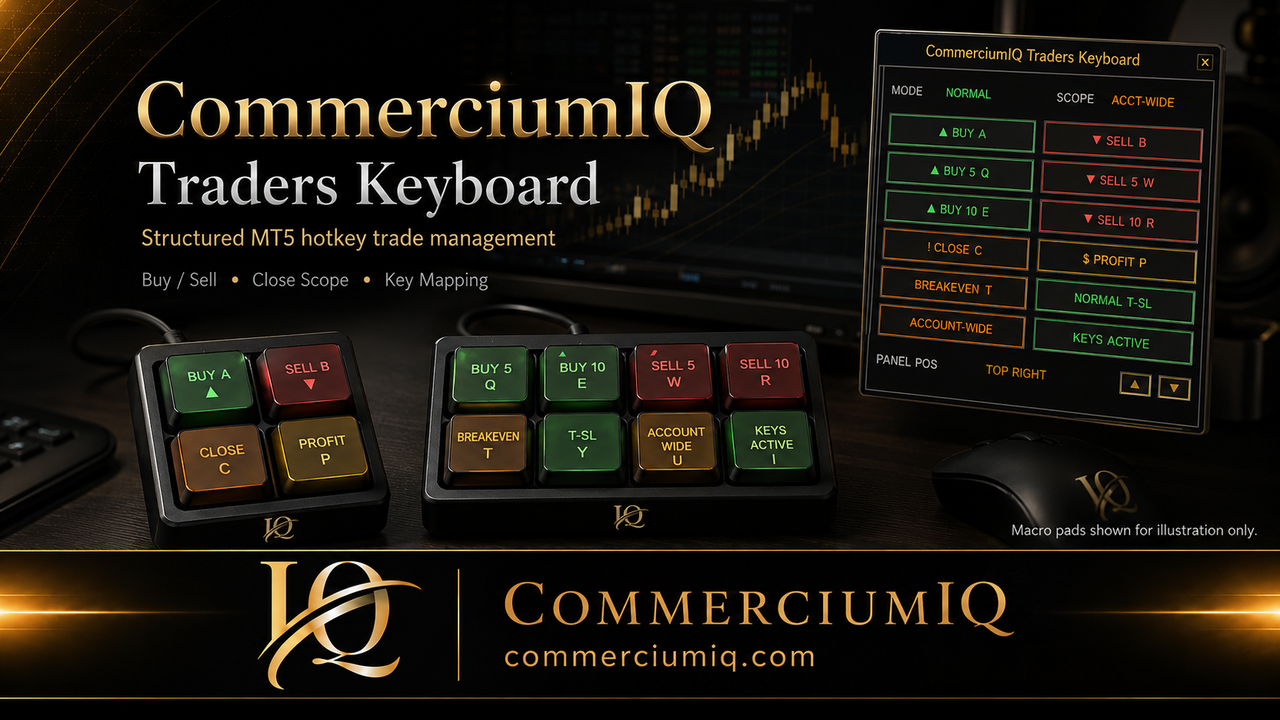
Scope comparison
A close command is not fully understood until the trader knows both the action and the boundary of that action.
| Scope | What it means | Best use case | Caution |
|---|---|---|---|
| Current Symbol | Applies to the symbol on the active chart | Managing one market at a time | Check broker suffixes and active chart |
| Account-Wide | Can apply across open account positions | Emergency or broad workflow management | Powerful and higher risk if used accidentally |
Scope is the boundary of a command. A button may say Close, Close Profit, Breakeven, or Manage, but the trader still needs to know which positions the command is allowed to touch. Without that boundary, the same label can mean very different things in practice.
Current Symbol and Account-Wide are especially important for traders who keep more than one market open. A gold chart, a forex pair, and an index can all be visible in the same MT5 desktop workflow. If the trader presses a broad command while thinking only about one chart, the result may be different from the intention.
Practical example
If you are managing XAUUSD on one chart but also have forex or index positions open, Current Symbol and Account-Wide behavior are very different. The interface keeps scope visible so the user is reminded before using close commands.
Current Symbol is usually easier to reason about because it is narrower. Account-Wide can be useful for broad management or emergency workflows, but it should never be treated as an ordinary shortcut.
Use Current Symbol for chart-by-chart management. Treat Account-Wide as powerful and test it carefully in demo before live use.
Current Symbol
The user still needs the correct chart, symbol, and broker naming behavior.
Current Symbol behavior is intended to focus the command on positions matching the active or selected symbol. If the trader is working on XAUUSD, the command should be understood as focusing on XAUUSD-related positions according to the software and broker symbol naming.
That sounds simple, but it still requires testing. Some brokers use suffixes, prefixes, or alternate instrument names. The trader also needs to confirm that the correct chart is active before using the command. A current-symbol workflow is safer only when symbol matching and chart focus are understood.
Current Symbol is most useful when the trader is managing one market at a time. For example, a trader focused on gold may want close-related actions to affect gold positions only, not forex pairs or indices that are also open in the same account.
This narrower workflow can reduce accidental broad action, but it does not replace a pre-click routine. The trader should still confirm the account, active chart, exact broker symbol, open position count, and command type before pressing a close-related key.
Account-Wide
A broader command needs stronger labeling, placement, and testing.
Account-Wide behavior means the command may apply across a broader set of open account positions. Depending on the command, this may include positions beyond the active chart or current symbol. That makes it powerful, but also easier to misuse.
Account-Wide should be treated as a higher-impact mode. It should be visibly different from ordinary chart-by-chart controls, especially for close-all or close-profit workflows. If a trader cannot explain what the account-wide command can affect, it should not be used live.
Account-Wide may be useful when the trader intentionally wants a broader action. For example, a trader may want to manage several positions at once or use a broad emergency exit workflow. The key word is intentionally.
Because the scope is broader, it should be tested in demo with multiple open symbols and multiple position states. The trader should know what happens to profitable positions, losing positions, and positions on markets that are not currently visible on screen.
Testing routine
The safest workflow is the one the trader can explain before pressing the key.
Open one small demo position and confirm how the command behaves on the active symbol.
Test several positions on the same symbol to understand grouped behavior.
Open positions across different symbols and compare Current Symbol against Account-Wide.
Intentionally select the wrong chart in demo to see how chart focus affects expectations.
Confirm that software labels, hotkeys, and physical macro pad labels all describe the same scope.
Repeat until the trader can predict which positions can be affected before pressing the command.
CIQ Traders Keyboard is software-only MT5 desktop workflow support. It does not include hardware, provide trading signals, recommend entries, act as a broker, guarantee profit, guarantee execution, or remove market risk.
Hardware images are illustrative only. Users who connect their own compatible keyboard or macro pad are responsible for mapping, labeling, and testing the physical input layer before live use.
Related guides
Review close-scope risk before using broader close commands.
Understand filtered close behavior and profit-scope cautions.
Review key assignments, labels, and backup shortcuts.
Confirm the chart symbol, broker suffix, open-position list, and selected scope before using a close command. Current-symbol behavior and account-wide behavior can produce very different outcomes when several markets are open.
Test the difference with the Close All workflow and the Close Profit workflow, then verify the assigned controls in Keyboard Mapping.
Visible scope helps clarify command intent, but the trader remains responsible for checking the account and confirming the expected effect before every key press.
Founders Promo: $49.99 USD one-time. Regular price: $99.99 USD.
Get Founders Access on Gumroad