One symbol test
Open a small demo position on one symbol and confirm the close command behaves as expected.
 CommerciumIQTraders Keyboard
Close command safety
Close commands can be powerful. CIQ Traders Keyboard makes Current Symbol versus Account-Wide scope visible so users can understand what the command is intended to affect before using it.
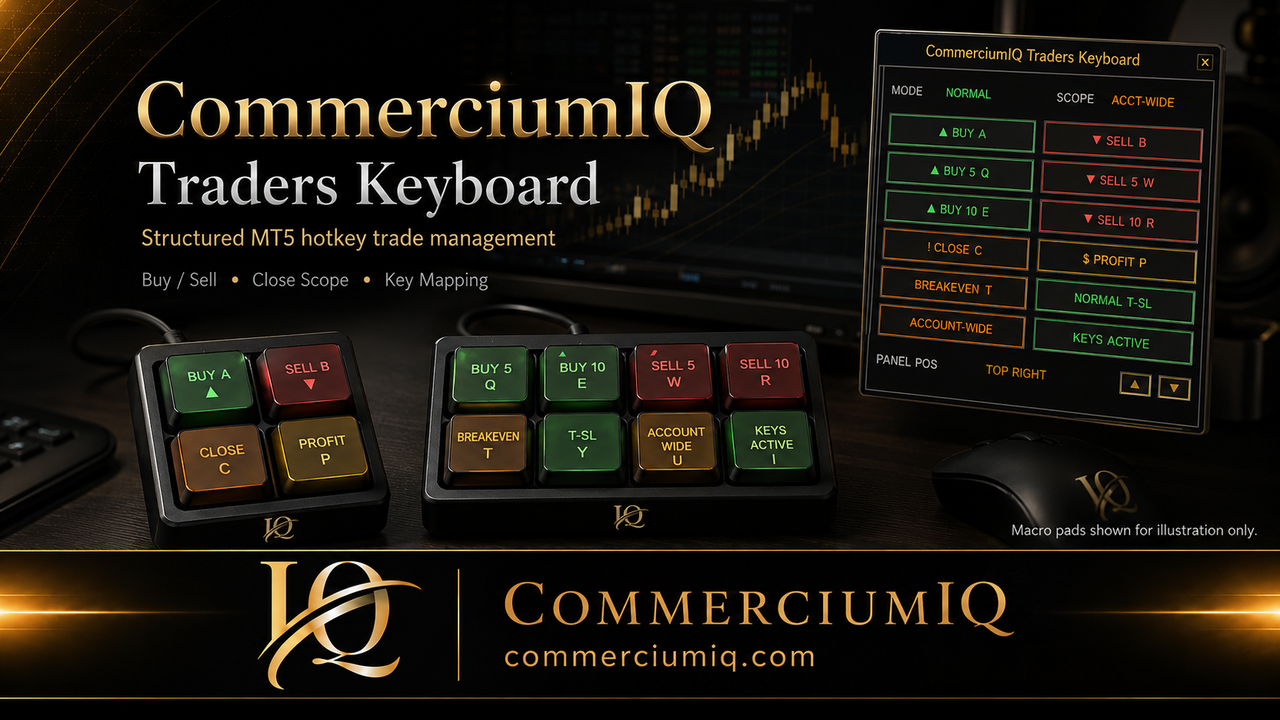
Scope control
When scope is set to Current Symbol, close commands are intended to focus on positions matching the active or selected chart symbol. When Account-Wide is selected, close commands may affect positions across the account. That is powerful and must be used carefully.
The difference is not cosmetic. A trader managing one gold chart may not intend to close a forex or index position. A trader using a broad emergency exit may intentionally want wider action. The software cannot decide which intention is correct; the user must understand the selected scope before using the command.
Close workflow
A close-all hotkey should be treated differently from a navigation shortcut or panel toggle. It can change the account state immediately.
Close all generally means closing every open position inside the selected command scope. The key phrase is “inside the selected command scope.” If the scope is current symbol, the command should be understood as narrower. If the scope is account-wide, it may include positions beyond the chart the trader is currently watching.
This is why close-all controls should have strong visual labels and a deliberate placement in the workflow. They should not be treated like ordinary hotkeys. A command that can exit multiple positions deserves a pause, a scope check, and a demo-tested habit before live use.
CIQ Traders Keyboard is designed to make the close workflow more visible, but it does not remove the user’s responsibility to confirm the command, active account, active chart, and intended scope.
Close profit is a workflow label for closing positions that meet a profit condition according to the tool’s configured behavior. It should not be assumed to mean the same thing as close all, partial close, or manual take profit. The trader should understand whether the feature applies to the current symbol, the broader account, or another defined group.
Before using close profit live, test it with several positions: profitable positions, losing positions, positions near breakeven, one symbol, and multiple symbols. The goal is to see exactly what the command includes and excludes.
Scope mistakes usually happen when the trader thinks visually but the software acts logically. The trader may be looking at one chart, but the active setting may be broader. The trader may think “close this market,” but the selected mode may allow a wider group of positions to be included.
Good workflow design reduces that risk by making scope visible. The user still has to build the habit: check account, check chart, check symbol, check command type, check scope, then press. A close-all command should never be pressed only because the key is easy to reach.
Demo testing
A fast close command is useful only when the trader knows exactly what will happen.
Open a small demo position on one symbol and confirm the close command behaves as expected.
Test several positions on the same symbol so the trader understands how grouped positions are handled.
Open positions across different symbols and compare current-symbol versus account-wide behavior.
Intentionally focus the wrong chart in demo to understand how chart focus and command scope interact.
Use profitable and losing positions to see how close-profit logic behaves in real platform conditions.
Confirm that the visible label, software setting, and any physical macro pad label all mean the same thing.
If a user maps close-all to a physical keyboard or macro pad, placement matters. A broad close command should not sit beside a common buy or sell key unless the user has an intentional confirmation routine. Close commands should be visibly different from entry commands and should be labeled with enough detail to reduce confusion.
For example, “Close Current Symbol” is clearer than “Close” when scope matters. “Account-Wide Close” should be treated as a higher-impact label. A short label may look cleaner, but a clear label is safer.
CIQ Traders Keyboard is software-only MT5 desktop workflow support. It does not include physical hardware, provide trading signals, recommend trades, act as a broker, remove slippage, or guarantee better outcomes. Close commands reduce click friction; they do not remove market risk or user-error risk.
Hardware images are illustrative only. Traders who use their own compatible keyboard or macro pad are responsible for mapping, labeling, and testing that hardware before live use.
Continue with Current Symbol vs Account-Wide, MT5 Close Profit Hotkey Workflow, and Close All vs Close Profit vs Partial Close for deeper workflow context.
Test the command with positions across more than one symbol so you can confirm whether the selected setting affects the current chart symbol or positions across the account. Include your broker's symbol suffixes and your account's hedging or netting behavior in the test.
Review Current Symbol vs Account-Wide and compare the command with the Close Profit workflow before mapping either action to a high-impact key.
A close command can reduce repeated clicks, but broker execution, price movement, rejection, latency, and user configuration can still affect the final result.
Founders Promo: $49.99 USD one-time. Regular price: $99.99 USD.
Get Founders Access on Gumroad