What is the first setup step?
Download the customer package, extract it into its own folder, and read the included Start Here and Quick Start documents before installing.
 CommerciumIQTraders Keyboard
Setup guide
Use this guide to prepare MetaTrader 5 Desktop, confirm compatibility, install the software package, configure core settings, and demo test before live trading.
Quick answers
These answers summarize the safest setup path for a new user.
Download the customer package, extract it into its own folder, and read the included Start Here and Quick Start documents before installing.
No. The recommended path is to attach and test the software on a MetaTrader 5 Desktop demo account first.
Confirm the panel displays correctly, settings input works, keyboard mapping is expected, and the chart symbol/scope are understood.
Use the built-in clean removal command or the included reset/cleanup tool on a demo chart before relying on the workflow.
Installation workflow
CIQ Traders Keyboard is designed for MetaTrader 5 Desktop on Windows. Before using live, install it on a demo account, confirm chart focus, and test every command with small or simulated positions.
This is an execution and trade-management workflow tool only. It does not provide trading signals, market predictions, or financial advice.
The correct setup mindset is slow first, fast later. A command center is only useful when the trader understands the account, symbol, settings, and command scope before pressing a key.
Place the delivered precompiled file in the correct MT5 Experts folder, then restart or refresh MetaTrader 5.
Attach the tool to the symbol you want to manage, such as a gold, forex, index, or other supported broker symbol.
Confirm MT5 Algo Trading is enabled and that your broker allows the actions you intend to test.
Test Buy, Sell, Close, Profit, Breakeven, and T-SL controls before using any live account.
Setup sequence
Do not map keys, label hardware, or use a live account before the software behavior is confirmed in demo.
Start by confirming that you are using MetaTrader 5 Desktop on Windows. The current product does not support MT5 mobile, MT5 web, TradingView, cTrader, or NinjaTrader unless a separate version clearly states otherwise.
Use a demo account first. Confirm the account type, broker, symbol list, and whether trading actions are allowed. A command center cannot override broker restrictions or platform permissions.
Place the delivered precompiled file in the correct MT5 Experts folder according to the support document, then restart or refresh MetaTrader 5. Attach the tool to the chart you plan to use for testing.
After attaching, confirm that the panel appears as expected and that MT5 permissions are configured correctly. If the tool does not appear or does not respond, stop and troubleshoot before testing any trading action.
Broker symbols may include suffixes or alternate naming such as XAUUSDm, XAUUSD.r, or other broker-specific formats. The visible chart and the broker-specific symbol naming should be checked before testing current-symbol behavior.
This matters because current-symbol close, close-profit, breakeven, and trailing-stop workflow depend on the intended symbol being clear. A user should never assume all brokers name instruments the same way.
Before assigning or relying on hotkeys, review the core settings: lot size, asset profile, initial stop behavior, breakeven trigger, breakeven buffer, normal trailing-stop mode, aggressive trailing-stop mode, ATR source, ATR period, minimum move, and close scope.
Settings should be treated as workflow controls. A small settings change can change the way a command behaves. Any important change should trigger a new demo test before live use.
Pre-live-use checklist
Use this checklist before treating the setup as ready.
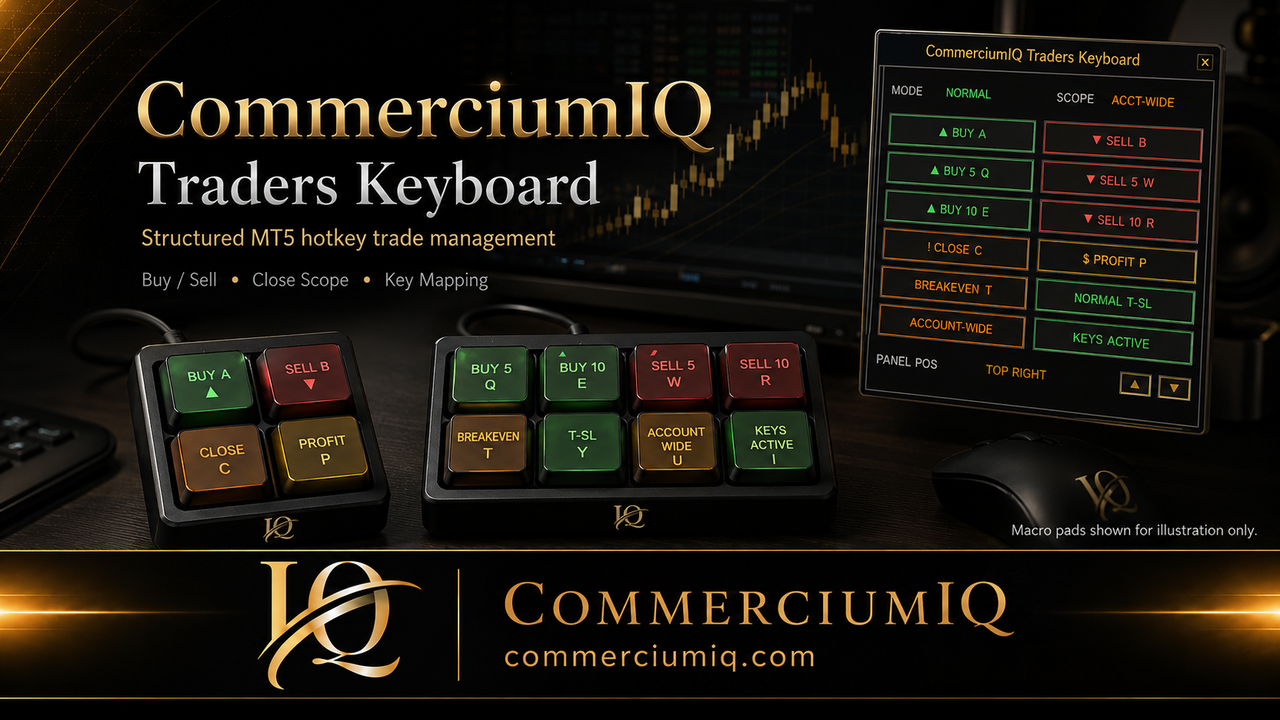
CIQ Traders Keyboard is software-only. It does not include a physical keyboard, macro pad, keycaps, labels, or hardware accessories. If you choose to use your own compatible keyboard or macro pad, map the keys only after the software behavior is confirmed.
Physical labels should match the software mapping. If a key is changed, update the label and retest. A correct software action with an outdated physical label can still create user error.
Begin with one small demo position on one symbol. Confirm basic controls. Then test close commands under Current Symbol scope. Next, test broader account-wide behavior only if you understand what it is expected to affect.
After that, test breakeven and trailing-stop workflow. Use both buy and sell positions. Test during normal spread conditions and avoid assuming that behavior on one symbol automatically applies to every market.
If any command surprises you in demo, pause the setup and simplify the workflow. The goal is not to make the tool fast first. The goal is to make the tool predictable first.
CIQ Traders Keyboard does not provide signals, recommend trades, act as a broker, guarantee execution, guarantee profit, remove losses, or remove slippage and market risk. It is a workflow tool for organizing manual MT5 desktop actions.
Use it only after you understand your broker platform, symbol behavior, risk settings, and trade-management plan.
Related setup pages
Confirm platform, broker, hardware, and account expectations before purchase or use.
Review key assignments, labels, laptop backups, and mapping-change testing.
Understand how your own compatible macro pad can fit into a software-only workflow.
Install the delivered software, attach it to the intended MT5 chart, enable the required permissions, confirm the account and symbol, and review lot size, close scope, protection values, and key mapping before sending any command.
Use the compatibility checklist before installation, the mapping guide before connecting external controls, and support when the observed behavior differs from the documented workflow.
Repeat the full demo test after changing a setting, broker account, symbol, MT5 build, Windows environment, product version, or physical input device.
Founders Promo: $49.99 USD one-time. Regular price: $99.99 USD.
Get Founders Access on Gumroad