Feature guide

CIQ Traders Keyboard feature breakdown.

A practical look at the software-only MT5 desktop command center features built to organize manual execution, close scope, breakeven workflow, trailing-stop modes, and keyboard mapping.

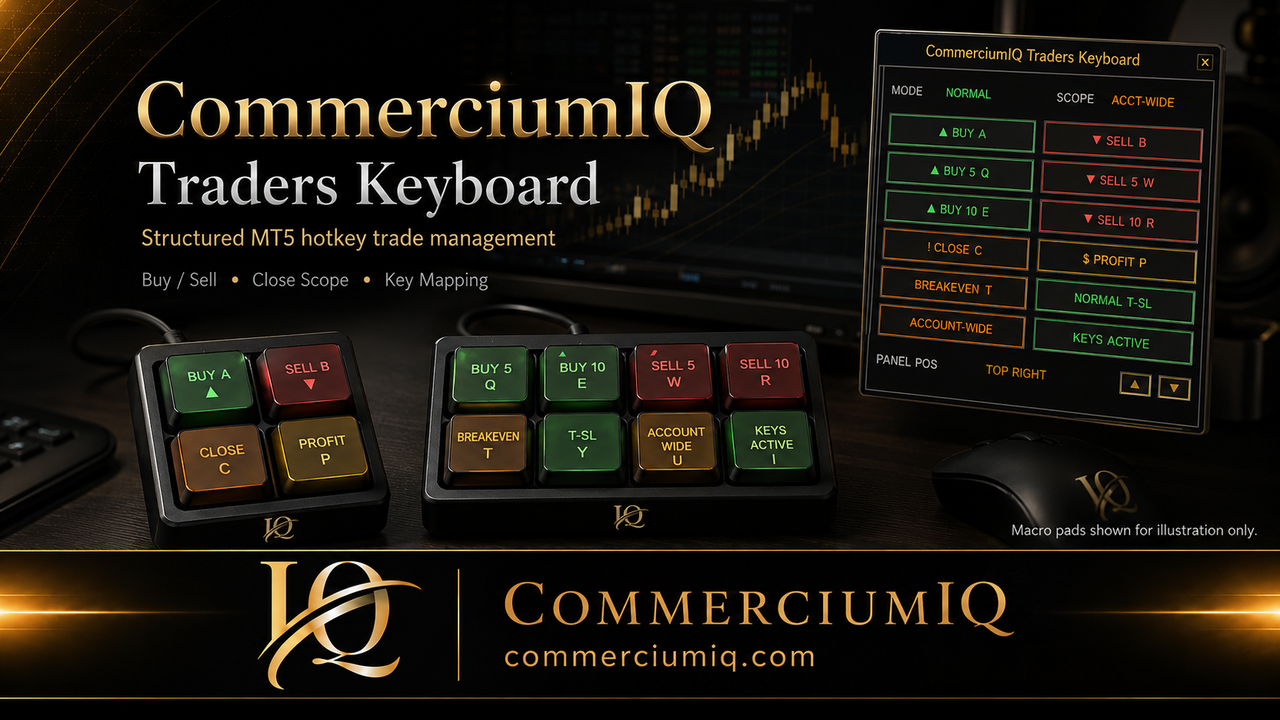
CommerciumIQ Traders Keyboard MT5 hotkey command center visual

Core workflow

Designed around repeated MT5 desktop actions.

The product is not a strategy engine. It is a visible workflow layer for manual traders who want their repeated MT5 execution and trade-management actions organized in one command center.

What the command center is meant to solve

Manual MT5 traders often repeat the same operational steps: confirm the account, check the chart symbol, choose order direction, manage open positions, move stops, close profitable positions, or exit a set of positions. Those steps are simple in isolation, but they become easier to mis-click when the trader is switching windows, watching multiple symbols, or using a compact macro pad.

CommerciumIQ Traders Keyboard is designed to bring those repeated actions into a clearer software control surface. The goal is not to make trading decisions for the user. The goal is to reduce menu hunting, make key actions visible, and keep important workflow states such as mode, scope, and key mapping easier to review before a command is used.

This is why the feature set focuses on execution workflow rather than signals. A command center should support a prepared decision. It should not encourage faster impulsive trading.

Buy / Sell

Trigger configured buy and sell actions from the panel or mapped keys after your account, symbol, volume, and mode settings are confirmed.

5

Buy 5 / Sell 5

Multi-order commands for users who deliberately configure and demo test their workflow before using faster repeated actions.

10

Buy 10 / Sell 10

Higher-count commands intended only for experienced users who understand order count, exposure, and user-error risk.

Current Symbol / Account-Wide

Choose whether close-related commands should act on the current symbol or the broader account scope, depending on the intended workflow.

Breakeven + Buffer

Move eligible positions toward breakeven plus a configured ATR-based buffer when the setup and market conditions allow.

Normal / Aggressive T-SL

Toggle trailing-stop behavior between normal and tighter/aggressive configurations after testing the behavior in demo.

Feature details

Built around visibility, scope, and command discipline.

The most important feature is not only the button. It is the context around the button: what it does, where it applies, and whether the trader can verify the setting before pressing it.

Trade tab: core buy, sell, close, and management controls

The trade tab is the main action surface. It is where the user can work with configured buy and sell commands, close commands, breakeven workflow, trailing-stop mode, scope, and panel status. In a manual trading workflow, this matters because the trader should not have to remember every hidden shortcut from memory.

The trade tab is also where user-error discipline matters most. A visible Buy button is still a live action. A visible Close button still needs scope awareness. A visible breakeven control still needs a position and valid conditions. The feature is useful only when the trader treats it as part of a pre-click routine.

Settings tab: lot size, ATR logic, and workflow parameters

The settings area is where the user reviews and adjusts workflow values such as lot size, ATR-related settings, breakeven trigger, breakeven buffer, trailing-stop behavior, and other parameters used by the command center. This area is intentionally separate from the main trade buttons so configuration does not feel the same as execution.

Settings should be tested in demo before live use. Changing a value can change how a command behaves. That means a settings change should trigger a new test, especially for close behavior, breakeven movement, and trailing-stop behavior.

Keys tab: configurable keyboard mapping

The key mapping feature lets users organize keyboard input around their own workflow. This is useful for traders who use a standard keyboard, compact macro pad, or other compatible input device. The software layer helps organize which key is expected to trigger which command.

Key mapping should never be treated as “set once and forget.” If a mapping changes, the user should update physical labels, notes, and demo tests. A key that was safe yesterday can become confusing if the label and mapping no longer match.

Scope control: current symbol vs account-wide awareness

Close scope is one of the most important workflow concepts on the site. Current-symbol behavior is narrower and is intended to focus the action on the active or selected symbol. Account-wide behavior can be broader and may apply across more than one open market, depending on the command and setup.

This is why the feature guide links closely to the current-symbol and close-command content. A trader using a fast close key should understand exactly which positions are inside the active scope before pressing the command.

Read the current-symbol vs account-wide product page or read the detailed article guide.

Workflow features

Feature pages in this product section.

Each feature page expands one part of the workflow and connects back to the article resource library for deeper educational support.

MT5 hotkey command center

Understand what a software command center is and how it differs from a generic keyboard shortcut list.

Keyboard mapping

Plan key assignments, labels, and mapping tests before using a faster control surface.

Macro pad setup

Use your own compatible macro pad or keyboard as a physical input layer, with hardware not included.

BE

Breakeven workflow

Understand breakeven plus buffer behavior as a trade-management workflow, not a profit promise.

What it is not

Clear boundaries keep expectations realistic.

This page should make the product easier to trust by clearly explaining what it does not claim to do.

Not a signal toolIt does not tell you when to buy or sell, and it does not provide market predictions.
Not a profit systemIt does not guarantee outcomes, remove losses, reduce slippage, or reduce market risk.
Not hardwareMacro pad images are illustrative only. Hardware is not included with the software purchase.
Not MT5 mobile or webThe current product positioning is MT5 Desktop on Windows, not mobile or browser trading.

Demo testing is part of the feature set

The features should be evaluated in demo before live use. Test simple cases and messy cases: one symbol, multiple symbols, one position, several positions, current-symbol scope, account-wide scope, breakeven behavior, and trailing-stop behavior.

If a command surprises the user in demo, the workflow is not ready for live use. The correct next step is to simplify the mapping, adjust labels, or slow down the workflow until the behavior is predictable.

Founders access summary

CommerciumIQ Traders Keyboard is offered as a software-only MT5 desktop command center for users who want a more structured manual execution workflow. The founders offer is currently presented as a one-time purchase through the checkout bridge.

Before purchase, review the feature boundaries, compatibility page, refund policy, license, and risk disclaimer. The product is a workflow tool; it is not a trading strategy, broker service, signal tool, or guaranteed income system.

Ready to simplify your MT5 execution workflow?

Founders Promo: $49.99 USD one-time. Regular price: $99.99 USD.

Get Founders Access on Gumroad

Product evaluation notes

Review product pages to understand what is included, what is not included, and which setup requirements apply before purchase. CIQ Traders Keyboard is a software-only product for supported MT5 Desktop and Windows workflows.

The product pages explain features, setup, compatibility, keyboard mapping, trade-management workflows, support expectations, and purchase routing. They do not provide trading advice, market predictions, broker services, trading signals, or profit guarantees.

Before live use, demo test every command and layout. Confirm the active symbol, lot size, command scope, broker restrictions, and MT5 permissions so the workflow behaves as expected in your environment.